Product Guide
How to Use
Follow the main LLMGrader workflow from setup to quiz creation, grading, and final LMS upload.
Guide Sections
- Understand what LLMGrader needs.
- Create questions and rubrics.
- Review grading output.
- Upload grades and feedback.

What LLMGrader Needs
Think of it as a teaching assistant who is grading a quiz. You need to give LLMGrader the same instructions as you would to a teaching assistant:
• The question
• The solution
• The rubric
• The number of points
What LLMGrader does
LLMGrader uses a large language model to grade the question and provide feedback.
It asks the LLM to grade students’ answers based on the information you provide just like a teaching assistant would do.
You retain full control
The grade and feedback are shown to you. You can adjust the grade and modify the feedback and save your changes before anything is uploaded to an LMS and any feedback is provided.
Create Better Prompts
Quiz Creation
Build the Question
You can ask it to generate questions on a topic, solutions to questions, as well as grading rubrics.
You can refine the question, solution, and rubric by asking it to generate good and poor answers; this helps you evaluate whether the question is clear or vague.
Example:
• I teach undergraduate [corporate finance]. I need a question for my students on [net present value] that involves reasoning and analysis.
• Then, converse with the LLM to get the question created to your satisfaction.
• Then, ask for a solution; check the solution, ask for corrections, then ask for a rubric.
• You can do this with any AI platform. LLMGrader can produce a file you can upload to a LMS like LMS.


Review Before Sharing
Grading
Once you have the student answers to a quiz, you can upload them and grade them, either one question at a time or have it grade everything.
You can choose the workflow that fits the assignment: review one response carefully, or let LLMGrader process the full quiz at once.
You can examine the grade and feedback, then correct it as you want.
You can create a CSV file that allows you to upload the grades into the LMS .
You can create individual feedback files in PDF format. Currently, these can only be uploaded into tthe LMS one by one; we are working with them to see if there is an automated solution.
Walk Through The Flow
LLMGrader Demo
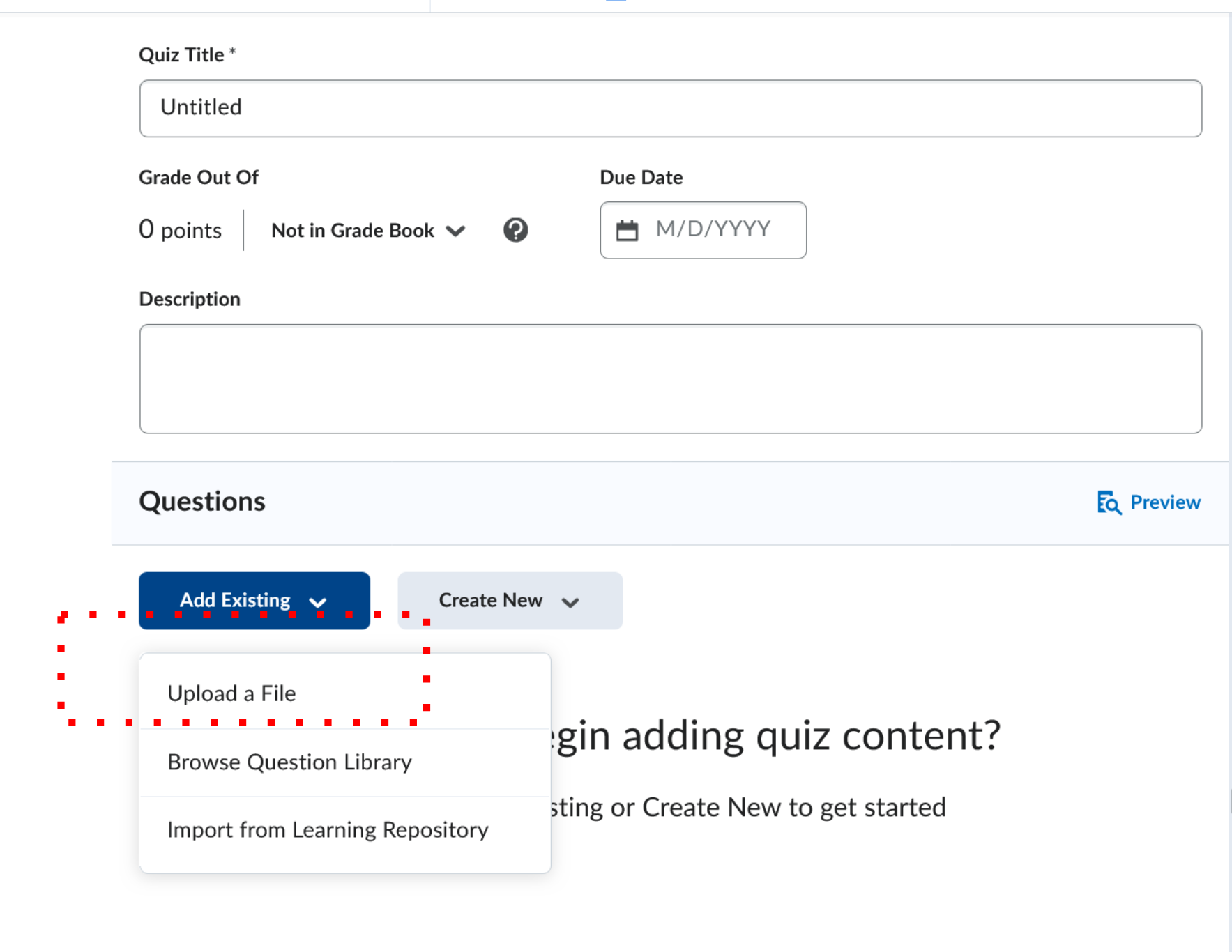
Step One: Set Up The Quiz
The has the capability to read in a quiz from a CSV file with a specific format
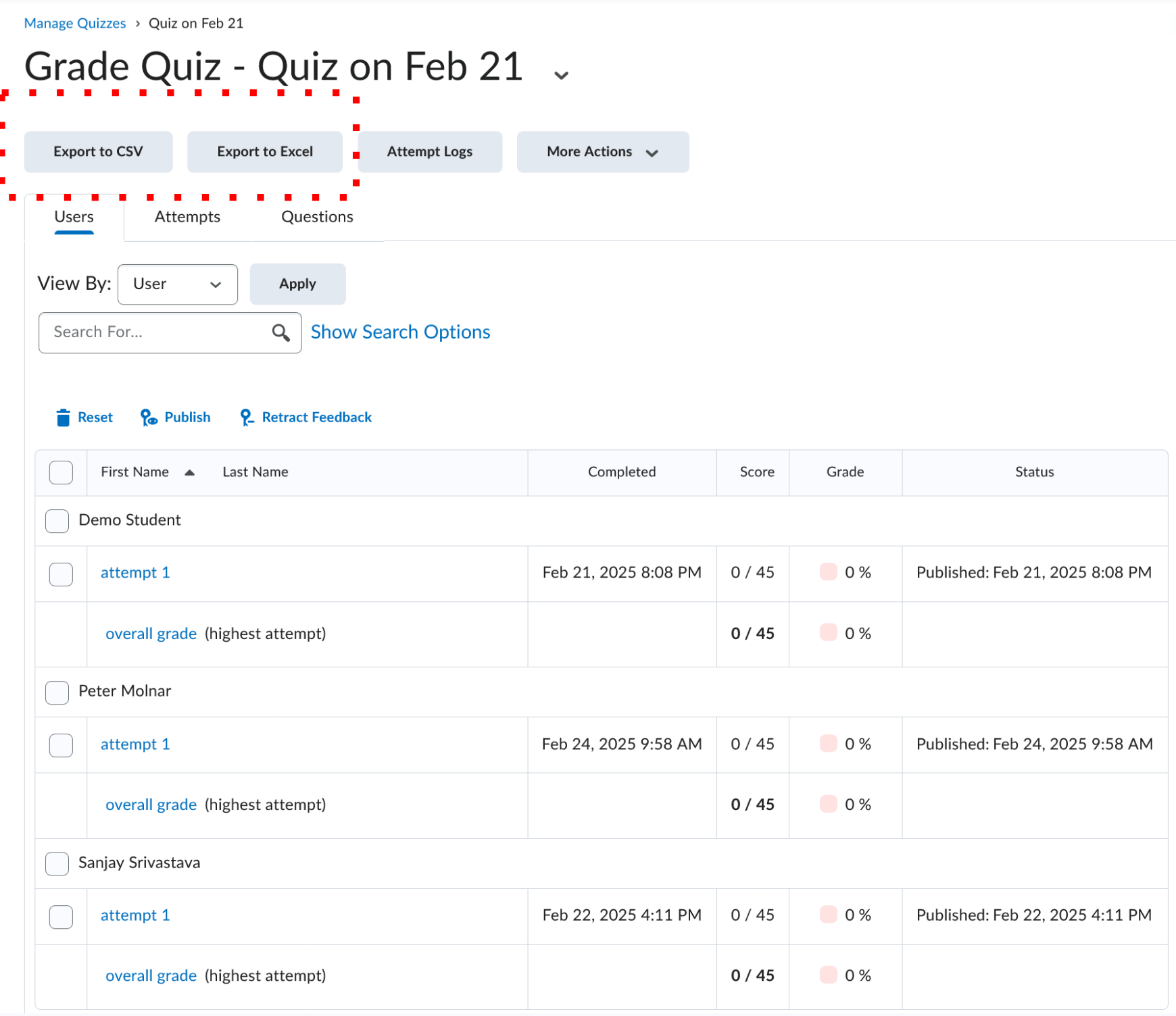
Step Two: Download Quiz Answers
Download student quiz submissions from LMS and prepare them for automated evaluation by the LLM grader.
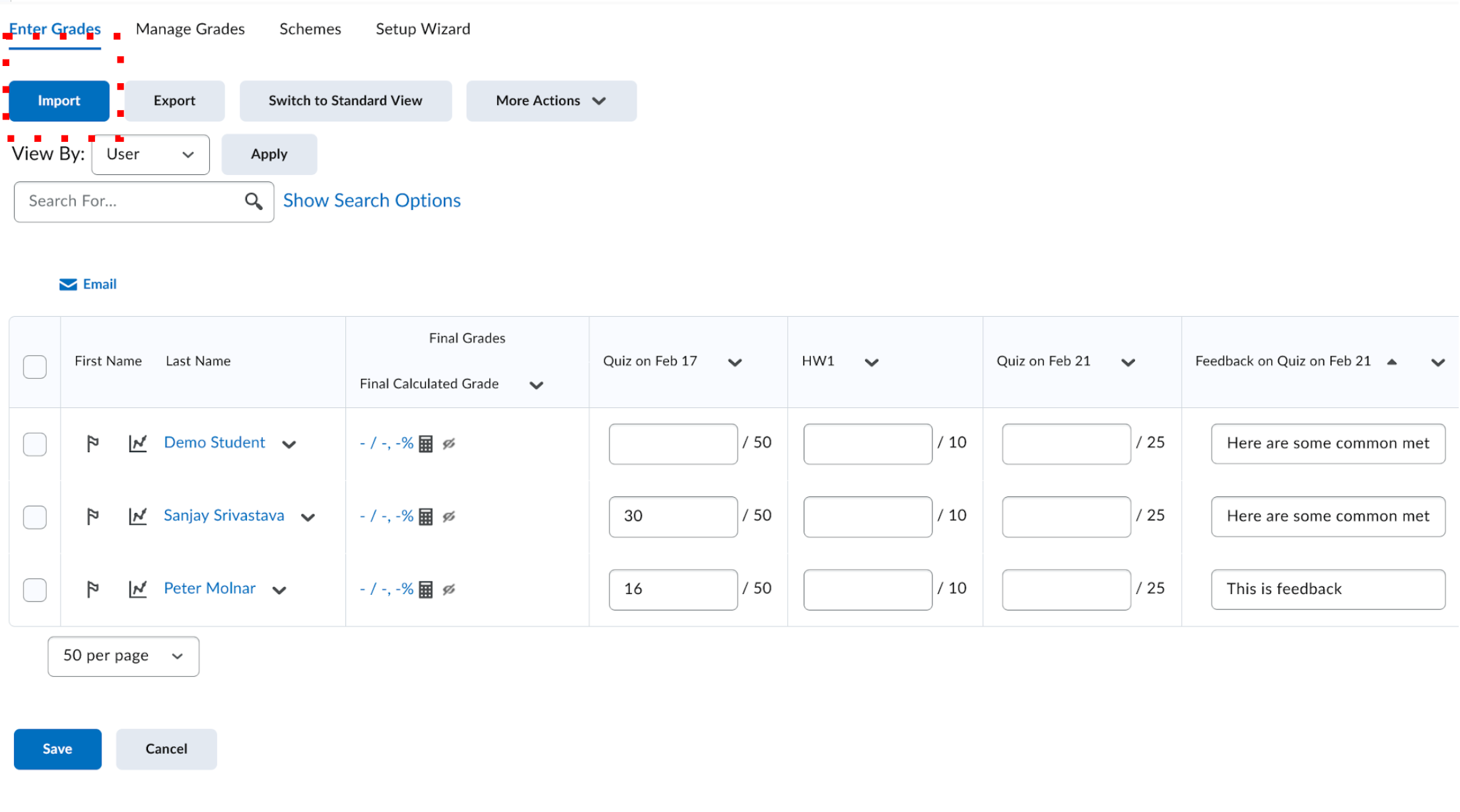
Step Three: Upload Grade Into LMS
LLMGrader will generate grade and feedback files formatted for upload into LMS
Need More Help?
Send questions or feedback to the team.
If anything in the workflow is unclear, visit Help & Feedback to ask a question, report an issue, or suggest an improvement.